
Onboarding
This guide assumes you have already completed the onboarding process. The onboarding will have the bot set up with a basic Identity and a short description.
Adding the widget to your website
On the developer page you will se an Embed Chat section that will look something like this
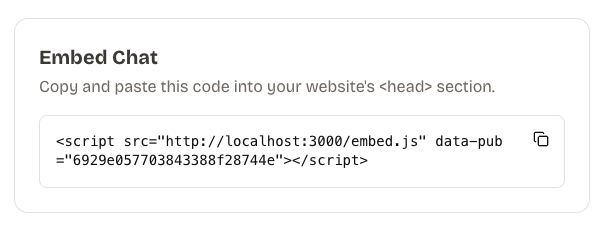
This is your embed script that you will need to copy and paste in to the <head></head> tag of your html file on the website you want the bot to be located at. The head-tag will be located at the top of your html file and will most likely already have some <script> -tags present.
Go ahead and restart the website and woila! You now have your own chatbot ready to serve your customers. You can try asking it what the company does, as it will refer to the description that you wrote earlier.
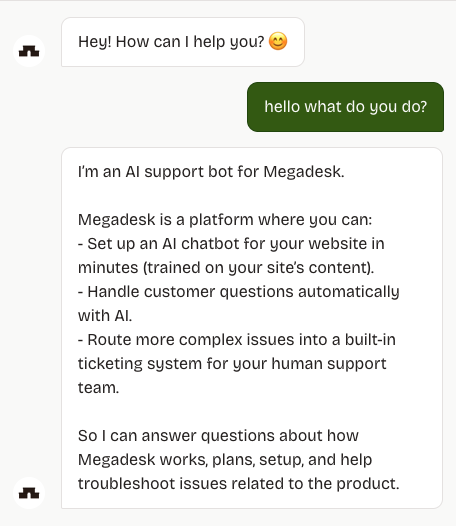
Right now the bot does not have much context so you can go ahead and hide the bot in the identity tab /identity by scrolling down to the bottom and activating "hide bot".
Configuration
Now you have successfully set up the widget on your website. Now is where the fun begins! To learn more about the configuration to make the bot behave and answer questions like your best customer support jump to the identity docs.
We wish you good luck!