
Identity
Lets start with tweaking the identity. Here you will be able to change the bots appearance aswell as its general behaviour.
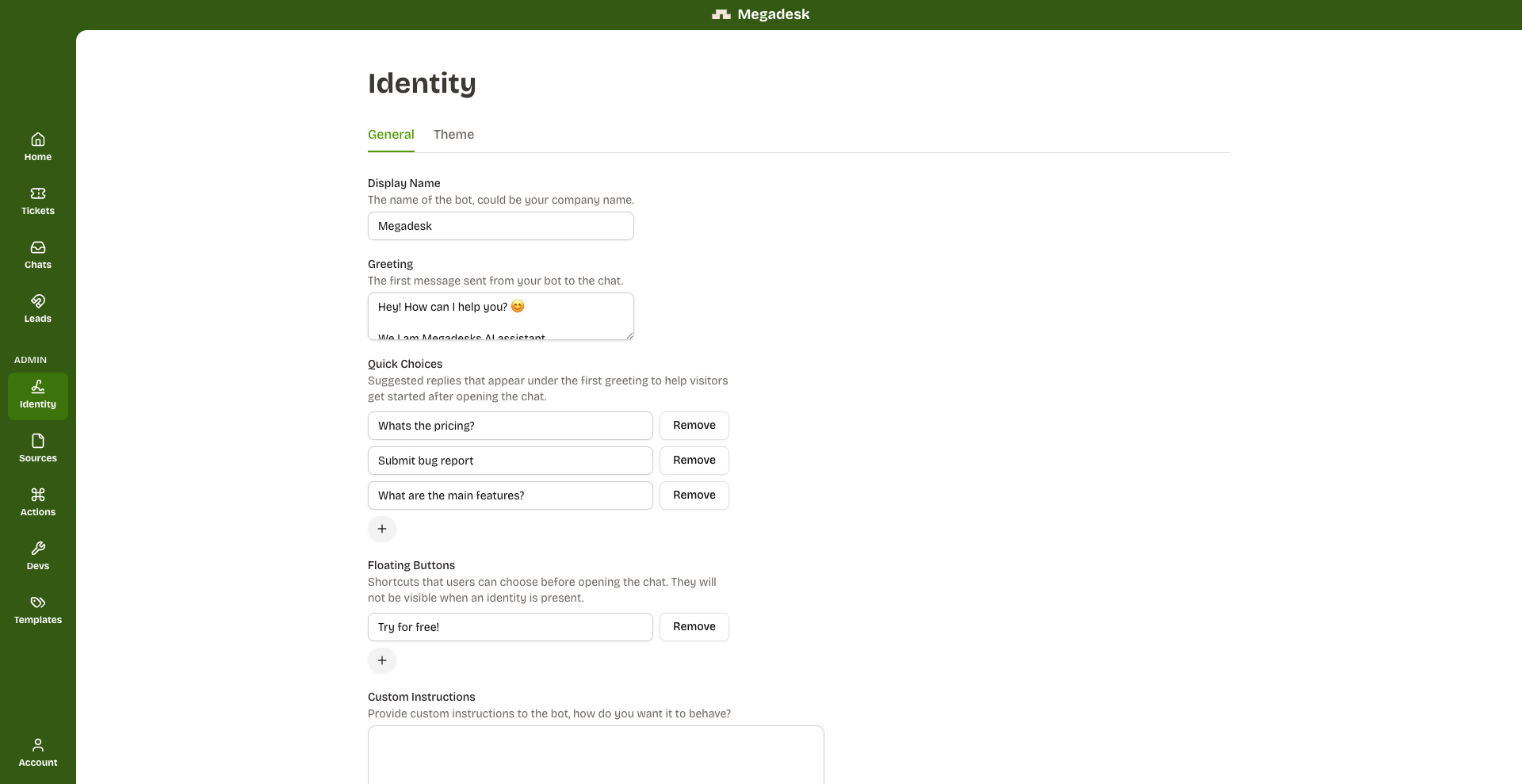
Under the /General tab you will see:
Display name
We will set the display name to MEGADESK as this will be the name showing on top of the chatbox.
Greeting
The greetings is the first message a user will see from the bot. This is a textarea meaning you can use multiple rows of space making a long multi line message possible. Here it can be wise to start with a greeting aswell as stating the main ways the bot is used for. In our case we will go for something in the style of
" Hey! How can I help you? 😊
We I am Megadesks AI assistant.
Here you can try out our product try asking it a question. I can help explaining pricing, features or submitting bug reports.
Feel free to write something! "
Quick choices
Quick choices are suggested replies that appear after the first message from the bot for the user to choose from. In our case we will go for three quick choices:
- Whats the pricing?
- What are the main features?
- I have found a bug
This is how it will look in the chat:

Floating buttons
Floating buttons are also a way to get users to click on the chat. Instead of suggesting replies in the chatbox, floating buttons instead suggests them outside of the box, hovering over the widget. Here we can try to be nudging towards a potential customer so here we will write,
- "Whats the pricing"
Custom Instructions
In the custom instructions we can choose what type of tone and goal our bot should have. We will leave it for now but some examples you can write are:
- "Try getting people to sign up to the PRO-plan."
- "Nudge the newsletter sign up"
Hide bot
Hides the bot from the website. This can be usefull under developement or improvement.
Under the /theme tab you will see:
Company logo
This is the profile picture of the bot which usually is your company logo. Best practice is using a 1:1 aspect ratio picture.
Primary color
Here you can match the chat color with your own website. This will change the color of the widget aswell as the chat bubble colors.